Stop Double Bookings: Wedding Calendar Sharing for Planning Studios
Stop Double Bookings: Wedding Calendar Sharing for Planning Studios
An effective wedding calendar sharing system gives your studio cross-event visibility, two-way sync with the calendar apps your team already uses, timeline linking down to individual vendor assignments, tiered permissions, and automated alerts before a conflict becomes a client-facing problem. Get those five pieces working together and double bookings, missed vendor confirmations, and “wait, which venue?” text threads mostly disappear. Miss even one, and you’re back to spreadsheets with extra steps.
TL;DR:
- Cross-event visibility and automated alerts reduce double bookings and vendor miscommunications, especially when managing over a dozen weddings simultaneously.
- Key features include two-way sync with Google and Outlook calendars, conflict detection, and vendor-permission controls, which are standard in specialized planning platforms.
- Implementing staged rollout, starting with an audit of existing calendars and a pilot of five to ten weddings, minimizes setup errors and ensures system compatibility.
- Clear governance, consistent naming conventions, and permission tiers are essential to prevent calendar chaos during team growth and vendor onboarding.
- Client-facing portals should reflect the live internal timeline with read-only access, particularly in the final month when rapid updates are critical.
Thespecialwedding Bring Wedding Operations Together
TheSpecialWedding helps planning studios replace scattered tools with one collaborative workspace for timelines, vendors, guests, and client communication.Explore TheSpecialWedding
Table of Contents
- Why Calendar Sharing Matters for Multi-Wedding Operations
- Core Calendar-Sharing Features Every Planning Studio Needs
- How to Set Up Shared Calendars Across Your Studio
- Governance and Team Rules for Shared Calendars
- Booking Pages, Intake, and Vendor Confirmations
- Integration With Client-Facing Calendars and Apps
- Mobile Access and Notifications for On-the-Go Management
- Data Privacy and Security for Shared Wedding Calendars
- Author Perspective: Lessons From Scaling Planner Workflows
- How TheSpecialWedding.io Puts This Into Practice
- Sources
- FAQ
Why Calendar Sharing Matters for Multi-Wedding Operations
A studio running fifteen weddings at once cannot rely on one planner’s memory or a shared inbox. Cross-event visibility, seeing every ceremony, vendor visit, and payment deadline on a single surface, changes how you plan capacity. You catch the Saturday where three lead planners are double-booked before you sign the fourth contract, not after.
Shared timelines cut vendor coordination time because the florist, caterer, and DJ are all reading the same schedule instead of five different email threads. Full-service planning already runs 200 to 400+ hours per event across roughly 14 vendors, so any tool that eliminates duplicate status updates pays for itself fast.
Automation is what makes the visibility stick. Reminders and milestone triggers tied to the shared calendar mean nobody has to remember to chase a signed contract or a final headcount.
- Fewer double bookings across team members and vendors
- Faster vendor follow-up because confirmations happen automatically
- Clearer day-of operations with one shared source of truth
- Less time spent answering “where are we on X wedding” questions internally
Core Calendar-Sharing Features Every Planning Studio Needs
Before you evaluate any platform, define what “calendar sharing” actually needs to do at studio scale. These seven categories separate a real operations tool from a glorified shared spreadsheet.
- Multi-wedding dashboard with cross-event filters. You should see every active wedding by date, planner, venue, or status, and dashboards should surface vendor deadlines, overdue payments, and weddings needing a decision in the next 30 days without you digging through folders.
- Two-way sync with Google Calendar and Outlook. Changes made on either side update instantly. A planner who moves a tasting appointment in their personal calendar should not have to re-enter it in the studio system.
- Booking pages linked to wedding projects. Meeting requests should attach directly to the correct wedding file, not float as a standalone calendar event.
- Vendor access levels and team permissions. Vendors see their piece of the timeline. Leads see everything. Assistants see what they’re assigned to.
- Timeline linking for day-of schedules. Each vendor assignment should tie back to the master timeline, so a shift in ceremony time updates every dependent task automatically.
- Conflict detection with automated alerts. The system should flag a scheduling collision the moment it happens, not the week of the wedding.
- Automation hooks for reminders and milestones. Contract signatures, deposit due dates, and vendor confirmations should trigger messages without a planner manually tracking them.
Industry platforms built specifically for planners already treat shared calendars, booking calendars, and timeline tools as baseline features, not add-ons. If a system treats calendar sharing as an afterthought, that’s a red flag for how it will handle everything else.
Pro Tip: Test conflict detection with a deliberately bad scenario before rollout, book the same vendor for two Saturday weddings on purpose, and see whether the system catches it before a human does.
How to Set Up Shared Calendars Across Your Studio
Rolling out calendar sharing works best as a staged process, not a single flip-the-switch launch.
- Audit existing calendars and tools. List every calendar currently in use, personal, shared drives, paper day sheets, and note who owns each one.
- Define scope. Decide which events are project-linked (venue visits, vendor calls) versus personal blocks (a planner’s dentist appointment) that should stay private.
- Configure two-way sync and pilot on one wedding. Running a pilot of five to ten weddings surfaces sync edge cases, like duplicate events or time zone mismatches, before they hit your whole roster.
- Build booking pages for recurring meeting types. Attach intake forms so consultation and tasting requests populate the wedding project automatically.
- Set vendor feeds and permissions. Decide who gets edit access versus a read-only feed of the day-of schedule.
- Configure conflict rules and alerts. Define what counts as a conflict and who gets notified.
- Measure pilot outcomes. Track missed confirmations, sync errors, and time saved on vendor follow-up before expanding further.
- Scale and document your standard operating procedure. Once the pilot performs, write down the rules so every new hire follows the same process, not their own version of it.
Studios that move from disconnected spreadsheets to an integrated system often see both capacity gains and fewer manual follow-ups within the first few months of adoption.
Governance and Team Rules for Shared Calendars
A calendar system only stays useful if everyone follows the same rules for naming, access, and escalation. Without governance, a shared calendar turns into the same mess it replaced, just digital.
Start with naming conventions. A consistent format, something like [Project Code]_[Date]_[Event Role], for example SMITH0926_09-26-26_Ceremony, means anyone on the team can scan a calendar and know instantly what they’re looking at.
Permissions should map to role, not seniority alone:
- Lead planners get full edit access across their assigned weddings.
- Assistant planners get edit access limited to their assigned tasks.
- Vendors get a read-only, timeline-linked feed showing only their relevant windows.
- Studio owners get view access across every active event for oversight.
Build a short escalation SOP for last-minute changes: who approves a timeline shift within 72 hours of the wedding, and who notifies affected vendors. Different conflict types, team scheduling clashes, vendor double-bookings, and venue availability issues, each need a different resolution path, so don’t treat every conflict the same way.
Pro Tip: New hires should shadow one full wedding cycle before getting independent calendar edit rights, this catches naming and permission mistakes before they become client-facing.
An onboarding checklist, covering naming standards, permission tiers, and escalation contacts, keeps consistency intact even as your team grows.
Booking Pages, Intake, and Vendor Confirmations
Meeting-to-wedding linking matters because context gets lost the moment a booking exists as a standalone calendar event instead of something attached to the project file. Booking pages that collect venue, guest count, and vendor contact details upfront eliminate the pre-meeting scramble to find that information.
Standard meeting types deserve standard durations. A first consultation typically runs 45 to 60 minutes, a venue visit needs a two-hour block including travel, and a tasting appointment usually runs 90 minutes with a buffer before the next commitment.
Two-way sync introduces real caveats worth planning around:
- Time zone mismatches cause missed calls when a destination wedding vendor is three hours off.
- Travel buffers need to be built into the calendar block, not assumed.
- Personal calendar events should stay visible as “busy” blocks without exposing private details to the shared feed.
Automations should handle the repetitive parts: sending vendor confirmation requests, firing reminders tied to timeline milestones, and flagging when a confirmation hasn’t come back within 48 hours. Connecting booking pages directly to wedding project records is what turns a calendar into a working system instead of a list of appointments.
Integration With Client-Facing Calendars and Apps
Clients expect to see their own wedding timeline update in real time, not receive a revised PDF every time something changes. That expectation is reasonable, and it’s also where a lot of studios fall short.
A client-facing view should pull directly from the same master timeline your team uses internally, filtered down to what the couple actually needs to see: ceremony time, vendor arrival windows, and payment due dates. When a vendor confirms a delivery window or a planner shifts the reception start time, the client’s version should update automatically instead of waiting for a manual export.
This matters most in the final 30 days before the wedding, when changes happen fastest and clients get the most anxious about details. A client portal that syncs live removes a huge share of “just checking in” messages, because the answer is already visible without a reply from your team.
Keep client-facing views read-only. Clients should never be able to edit the master timeline directly, since even a small accidental change can cascade into a vendor conflict nobody catches until the day of the wedding. Give them visibility, not edit rights, and route any requested change through your team so it goes through the same conflict-checking process as any other update.
The practical test: if a client can open their portal the week of the wedding and see the exact same ceremony time your day-of coordinator sees, your integration is working. If there’s any lag between what the client sees and what your team is actually working from, that gap is where miscommunication starts.
Mobile Access and Notifications for On-the-Go Management
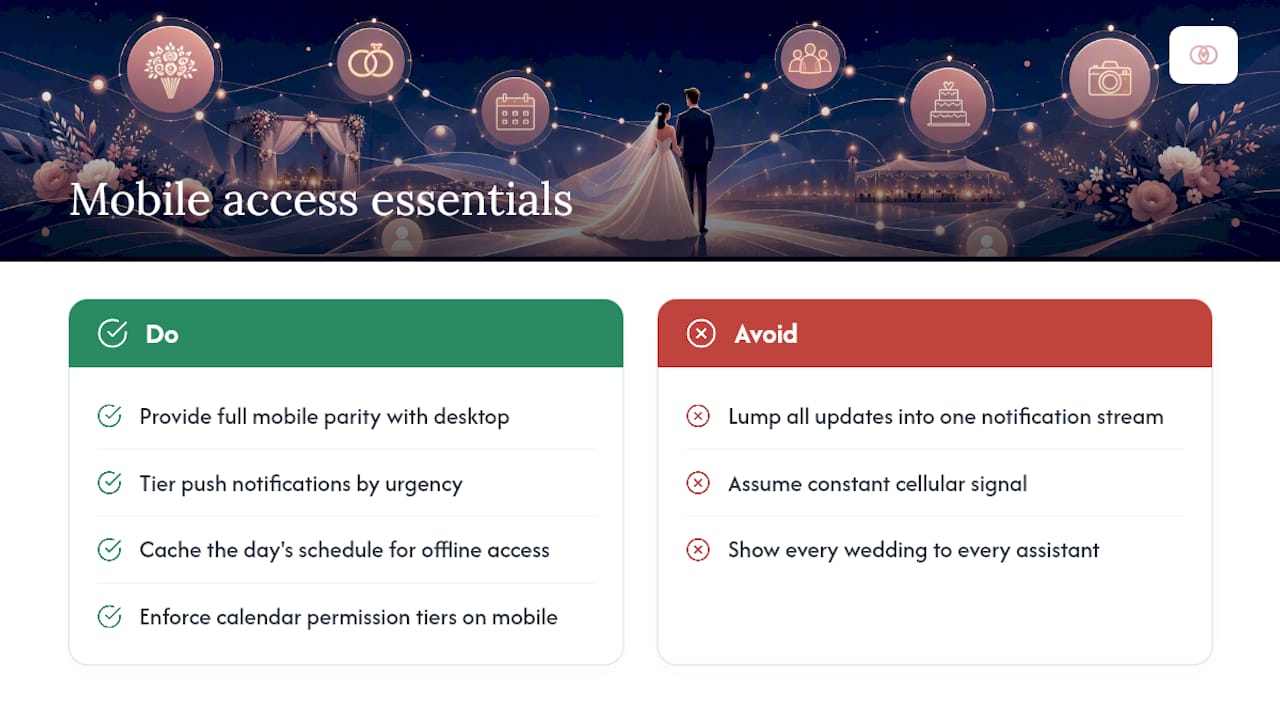
Wedding day operations happen almost entirely away from a desk, which makes mobile access a requirement, not a nice extra. Your lead coordinator standing in a venue parking lot needs the same information available on their phone that they’d see on a studio laptop.
Push notifications should be tiered by urgency. A vendor running fifteen minutes late deserves an immediate alert to whoever’s on-site. A vendor confirming next week’s delivery window doesn’t need to interrupt anyone’s Saturday. Systems that lump every update into one notification stream train staff to ignore all of them, which defeats the purpose.
Offline access matters more than most studios plan for. Venues in rural areas or older buildings often have weak cell service, and a coordinator who can’t pull up the timeline because the signal dropped is worse off than one working from a printed sheet. Look for systems that cache the day’s schedule locally so it’s viewable without a live connection, syncing back up once service returns.
Mobile calendar views also need to respect the same permission tiers as the desktop version. An assistant planner’s phone shouldn’t display every wedding on the studio roster, just the one they’re working that day. That keeps the interface fast and prevents information overload during the exact hours when a coordinator has the least time to sort through irrelevant data.
The real test of mobile access isn’t whether the app opens on a phone. It’s whether a coordinator standing outside a reception venue with one bar of signal can still confirm the next vendor arrival without calling the office.
Data Privacy and Security for Shared Wedding Calendars
Wedding calendars hold more sensitive information than most planners initially realize: client addresses, payment schedules, vendor contracts, and sometimes guest lists tied to security-conscious events. Treating that data casually creates real risk, both for the couple and for your studio’s liability.
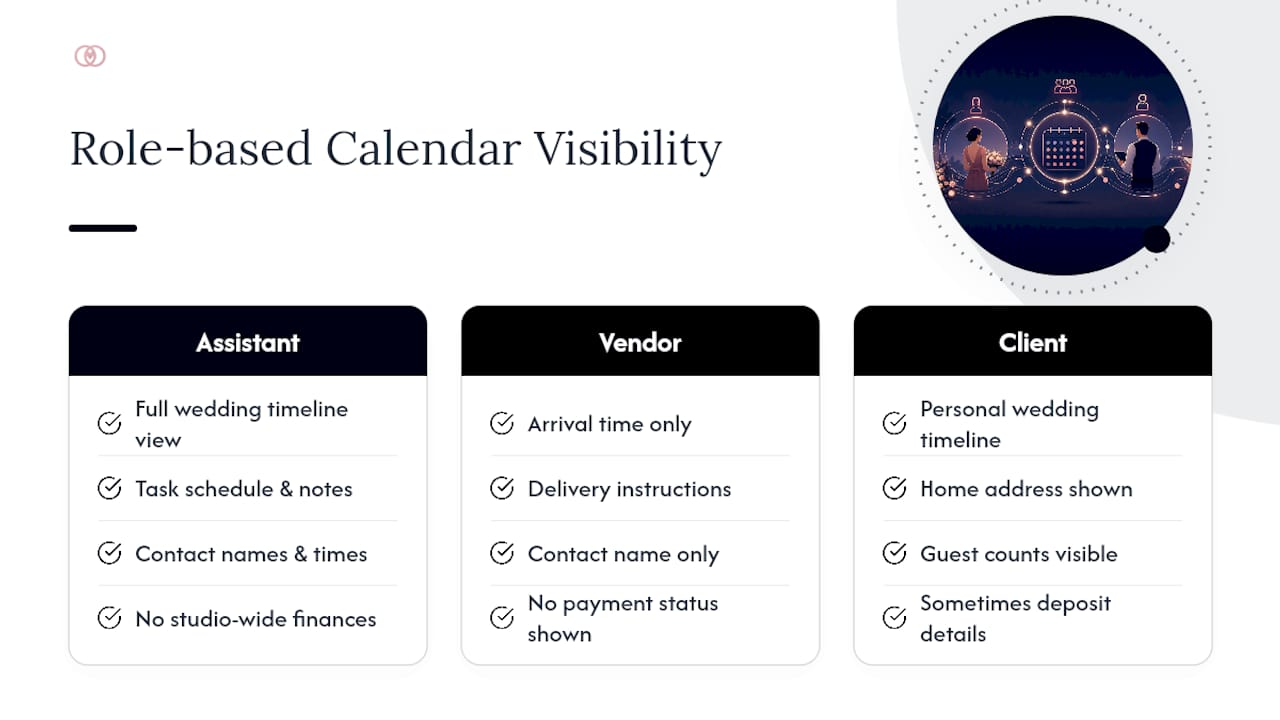
Permission tiers are your first line of defense. A vendor feed should show only what that vendor needs, arrival time, delivery instructions, contact name, and nothing about payment status or other vendors’ contracts. The same principle applies internally: an assistant planner working one wedding shouldn’t have visibility into every client’s financial details across the whole studio roster.
Access logs matter more as your team grows. If a client disputes a timeline change, being able to see exactly who edited what and when protects both the studio and the staff member involved. Systems without change tracking leave you guessing during exactly the kind of dispute you can’t afford to guess through.
Client portals need the same scrutiny. Couples are trusting your studio with home addresses, guest counts, and sometimes financial details tied to deposits, so any client-facing calendar integration should run over encrypted connections and require authenticated login rather than an open link anyone could stumble into.
Vendor offboarding is the piece most studios forget. When a contract ends or a vendor relationship sours, their calendar access needs to be revoked immediately, not left active because nobody remembered to check the permissions list. Build that revocation step into your standard closing checklist for every wedding, not as an afterthought once something goes wrong.
Author Perspective: Lessons From Scaling Planner Workflows
Staff resistance to a new calendar system almost always comes from one thing: nobody explained why the old way was actually costing them time. A small pilot, one wedding, one team, real edge cases, solves that faster than any training deck.
The wins that stick are the boring ones: fewer scheduling conflicts caught before they became client calls, and vendor confirmations that stopped needing a follow-up text. Studios documenting these transitions on internal blog posts about calendar conflicts tend to see faster staff buy-in than studios that just mandate the switch.
— JOATLABS
How TheSpecialWedding.io Puts This Into Practice
Most studios patch together a shared calendar from tools never built to talk to each other, a Google Calendar here, a spreadsheet there, and a group chat holding the whole thing together by habit. Thespecialwedding was built specifically to replace that patchwork with one workspace where calendar sharing, vendor coordination, and client communication live in the same place.
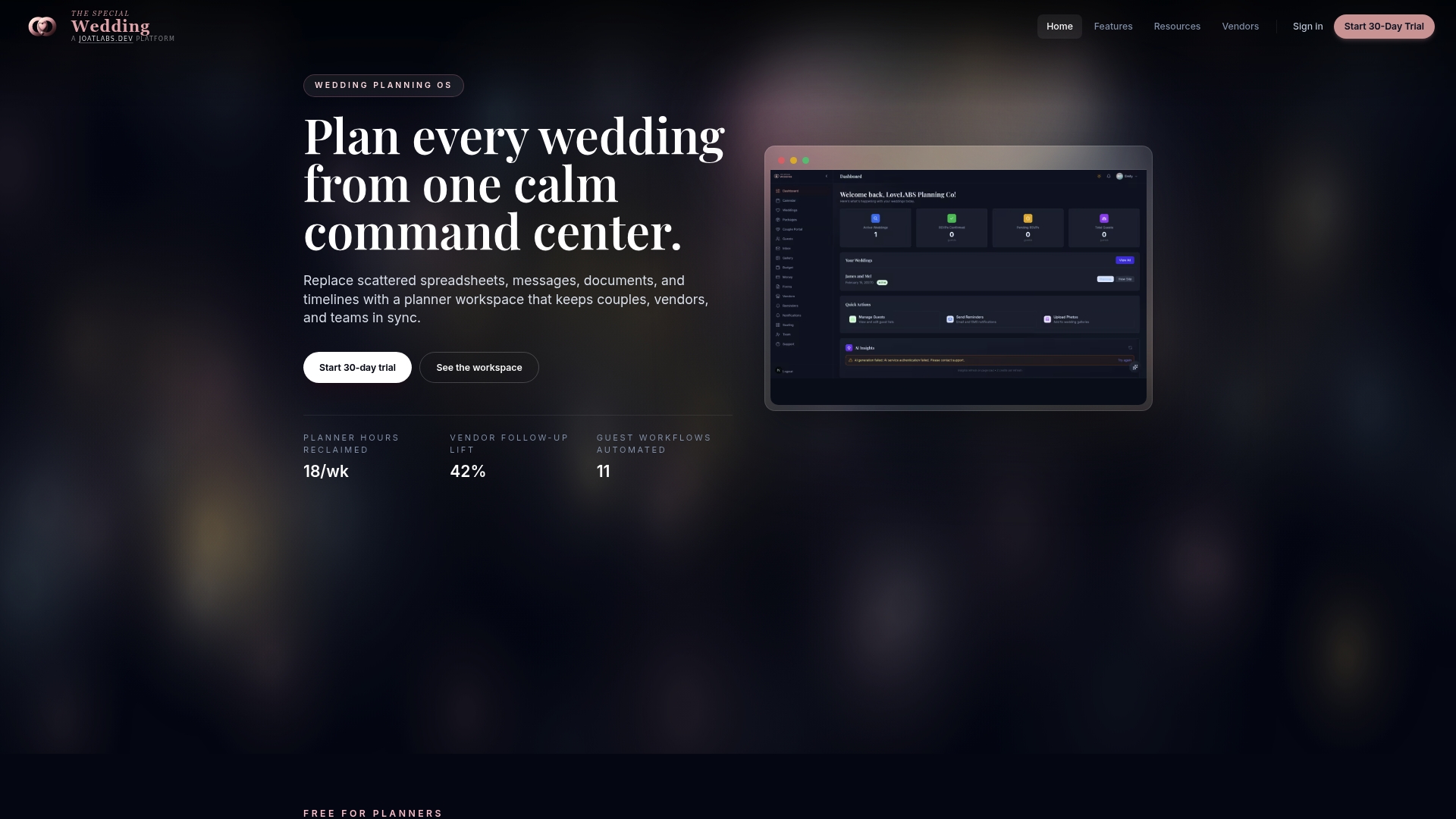
The platform includes a multi-wedding dashboard for cross-event visibility, two-way calendar sync, booking pages tied directly to wedding projects, vendor portals with tiered access, and automation for reminders and milestone alerts, the same core capabilities outlined throughout this article. Rather than bolting calendar sharing onto a generic project tool, it treats the wedding project as the central record everything else connects to.
If your studio is still coordinating vendor bookings by email, browsing a live example like the event decorating and lighting vendor listing shows how a vendor record ties into the broader project timeline. Start a free trial to test the dashboard and sync setup against your own roster before committing to a full rollout.
Sources
For hands-on next steps, review how vendors use shared timelines and how to distribute wedding timelines to vendors for practical templates.
- Best All-in-One Software for Wedding Planners in 2026 - Plutio
- AI Operating System vs Point Solutions for Wedding Planning | OS For Your Business
- ERP Software Solutions for Wedding Planners
FAQ
What Does Wedding Calendar Sharing Actually Mean for Studios?
It means a shared, synced calendar system where planners, vendors, and clients see the timeline data relevant to their role, updated in real time across every active wedding a studio manages.
How Many Weddings Should a Pilot Program Cover?
Run a pilot of five to ten weddings to surface sync issues, permission gaps, and conflict-rule edge cases before expanding to your full roster.
Does Two-Way Sync Work With Both Google Calendar and Outlook?
Yes, a properly configured integration should push and pull updates from both platforms in real time, so a change made on either side reflects everywhere without manual re-entry.
What’s the Biggest Cause of Wedding Calendar Conflicts?
Most conflicts trace back to disconnected personal and project calendars, where a planner or vendor double-books because one system doesn’t talk to the other; centralized dashboards like the one in Thespecialwedding catch this before contracts get signed.
How Should Vendor Permissions Differ From Team Permissions?
Vendors should see a read-only feed limited to their assigned windows, while internal team members get edit access scaled to their role, from full studio oversight for owners down to task-level access for assistants.
Recommended
Free wedding planner templates
Skip the blank page — these templates ship with the form fields you actually need.
Browse all 9 free templates →