Wedding File Management for Multi-Event Planning Studios
Wedding File Management for Multi-Event Planning Studios
Wedding file management is the practice of organizing contracts, timelines, vendor files, seating charts, and client approvals inside a single, standardized system across every wedding a studio runs. The recommended approach for any studio handling more than a handful of events: one source-of-truth platform, a consistent folder taxonomy, role-based permissions, and a short list of targeted automations. Studios that get this right typically report fewer vendor errors, faster contract approvals, and measurable time saved per wedding, since integrated event management systems can cut administrative labor by nearly 40 percent once teams standardize their process.
- Faster approvals because clients and vendors know exactly where to find and sign documents.
- Fewer duplicate or outdated files circulating between planners.
- Measurable hours saved per wedding once repetitive file tasks are automated.
Key Takeaways
Wedding file management works best when a studio adopts one centralized event workspace, a standardized folder taxonomy, and role-based permissions before automating any workflow.
| Point | Details |
|---|---|
| Pick one source of truth | Consolidate contracts, timelines, and vendor files into a single event workspace instead of scattered tools. |
| Standardize the taxonomy | Use a consistent root folder pattern and file naming convention across every wedding you manage. |
| Automate the top three workflows | Start with vendor confirmations, payment reminders, and contract-signature triggers before expanding further. |
| Run a 30/60/90 pilot | Finalize taxonomy in 30 days, migrate the full pipeline by 60, complete cutover by 90. |
| Thespecialwedding implements the pattern | Its event workspaces, client portals, and automated triggers directly reflect the structure this guide recommends. |
Where Can You Read More on This Topic?
- AI Operating System vs Point Solutions for Wedding Planning covers when to choose an all-in-one platform.
- Software Buying Checklist for Wedding Planners breaks down realistic monthly software costs.
- Wedding planner contract essentials expands on document storage practices.
- Types of wedding vendor collaboration tools details vendor portal patterns.
Table of Contents
- What Are the Core Principles Behind Reliable File Management?
- How Should You Structure Wedding Files and Name Them?
- Which Workflows Should You Automate First?
- Who Should Have Access to Which Wedding Files?
- How Do You Migrate Without Losing Data?
- What Does a 30/60/90 Day Rollout Look Like?
- Frequently Asked Questions
- Sources
What Are the Core Principles Behind Reliable File Management?
Tool sprawl is the enemy. When contracts live in email, seating charts live in Google Sheets, and vendor confirmations live in a group text, nothing is ever the single accurate version. An event-first workspace, where every file, message, and timeline for one wedding lives under one event record, solves this because it forces a single source of truth instead of scattered copies. Studios juggling 15 to 30 simultaneous events see the clearest payoff here: an AI operating system that unifies vendor coordination, timelines, and client communications reduces the cross-tool synchronization errors that come from managing dozens of weddings across disconnected apps.
Keep shared, cross-event resources, your vendor master list, contract templates, brand assets, separate from per-event workspaces. Mixing the two is how studios end up with twelve versions of the same catering contract template scattered across different wedding folders.
A few rules keep the whole system from decaying over six months:
- Standardize naming and versioning before your second wedding goes live, not after your tenth.
- Set retention rules for canceled events and past clients so archives don’t clutter active dashboards.
- Choose an all-in-one platform when you’re coordinating vendors across many concurrent events; keep point solutions only for a single, narrow task you’re not ready to migrate yet.
Pro Tip: Build your vendor master list before your folder taxonomy. Every event folder should pull from it rather than recreate vendor contact details from scratch each time.
How Should You Structure Wedding Files and Name Them?
A copy-ready structure beats a clever one. Every event gets a root folder using the pattern clientLastName_eventDate_eventCode (example: Harrison_20261017_WH2026), which keeps events sortable by date and searchable by client name without relying on memory.
- Contracts — signed agreements, addenda, cancellation clauses.
- Budgets & invoices — vendor quotes, deposits, payment schedules.
- Vendor files — per-vendor subfolders pulling from your vendor master.
- Timelines & runsheets — day-of schedules, rehearsal timing, load-in windows.
- Seating — floor plans, guest-count revisions, table assignments.
- Design & assets — mood boards, florals, signage proofs.
- Approvals — client sign-offs on vendors, menus, and designs.
- Communications — logged emails and portal messages tied to the event.
File naming should follow YYYYMMDD_type_v1_APPROVER, so 20260305_floralproposal_v2_JPlanner tells anyone instantly what the file is, when it changed, and who touched it last. Version numbers increment; they never overwrite.
For recurring service tiers, day-of, partial, and full-service, build reusable folder sets in advance rather than recreating structure per client. Many all-in-one platforms already ship with templates for common service tiers that studios can adapt instead of building from zero, a pattern worth borrowing even if you build your own. Our templates for professional studios post walks through building that reusable set.

Which Workflows Should You Automate First?
Not every task deserves automation, but four consistently return the most time saved: vendor confirmation emails, milestone payment reminders, timeline distribution to the full team, and contract-signature triggers. Each one should also update the file system automatically, not just send a notification. A signed contract should move itself into a locked, read-only folder. A guest-count change should update the seating file and flag the caterer’s headcount document in the same motion.
Platforms built specifically for wedding planning increasingly bake this in. Auto-generated timelines built from client questionnaires and automatic vendor instruction generation remove the manual step of translating a client intake form into a day-of runsheet by hand.
Adoption doesn’t need to happen all at once. A phased approach, starting with your single highest-impact pain point, measuring the time saved, then expanding, reduces the risk of a messy full-platform switch compared to replacing everything in one weekend.
- Trigger: contract fully signed → Action: move to locked “Signed” folder, notify accounting.
- Trigger: guest count updated → Action: refresh seating file, alert caterer and rental vendor.
- Trigger: 30 days before wedding → Action: send milestone payment reminder to client.
Pro Tip: Ask your top three vendors whether they can receive automated confirmation emails directly, some will, and that alone removes a recurring manual task from your week.
Who Should Have Access to Which Wedding Files?
Permission chaos is one of the fastest ways to lose a signed contract or leak a client’s budget to the wrong vendor. A workable role structure looks like this: admins control the full account and billing, planners have edit access across their assigned events, coordinators get edit access scoped to day-of files only, vendors get upload access restricted to their own folder, and clients get read-only or comment access through a portal, never raw folder access.
Lock contract folders to read-only the moment a document is countersigned. Restrict vendor uploads so a florist can drop in a proposal but can’t see the caterer’s invoice sitting in the same event.
Client portals solve the approval problem without exposing internal files. A client can approve a floor plan or a vendor selection through a portal view while your budget notes, vendor negotiation history, and internal comments stay invisible to them. Our wedding quote approvals workflow covers how to structure that approval layer.
- Review permissions quarterly, not just when someone leaves the team.
- Assign one person, usually the studio owner or lead admin, to own the audit log review.
- Revoke vendor access automatically 30 days after the wedding date.
How Do You Migrate Without Losing Data?
Before touching a new system, inventory what’s active. Identify your real templates versus abandoned drafts, then delete duplicates rather than migrating clutter into a clean system.
- Import templates first, then active events, then archived weddings last.
- Run both old and new systems in parallel for two to four weeks to confirm data integrity before fully retiring the old setup.
- Test calendar sync, payment gateway connections, e-signature tools, and vendor contact imports before your first live event depends on them.
- Keep a rollback plan documented in case an integration fails mid-migration.
Small studios typically clear this in two to three weeks; agencies with dozens of active events should budget six to eight.
Pro Tip: Migrate your slowest-moving wedding first, one that’s 8+ months out, so any hiccups don’t threaten a client with a wedding next month.
What Does a 30/60/90 Day Rollout Look Like?
A phased rollout keeps the transition from overwhelming your team mid-season.
- Days 1 to 30: Finalize your folder taxonomy, migrate two or three pilot events, and activate your top three automations.
- Days 31 to 60: Migrate your full active pipeline, train every staff member on the new structure, and turn on vendor portal access.
- Days 61 to 90: Complete the full cutover, audit results against your baseline, and revise templates based on what broke.
Track admin hours per wedding, approval turnaround time, and missed vendor deadlines as your core KPIs. Studios adopting integrated systems with disciplined processes have reported booking conversion gains of 15 to 20 percent alongside the administrative time savings, a strong signal that organized files translate directly into closed deals.
What Pitfalls Do High-Performing Studios Avoid?
The recurring failure is skipping taxonomy and permissions entirely, then mixing personal drives with shared ones. Disciplined studios enforce template use, assign clear folder ownership, and run monthly audits instead of annual scrambles.
How Thespecialwedding Puts This Playbook Into Practice
Building this structure by hand across spreadsheets, shared drives, and email threads is exactly the tool sprawl this guide warns against. Thespecialwedding gives every wedding its own event workspace by default, so contracts, vendor files, timelines, and seating charts live under one client record instead of scattered across six apps.
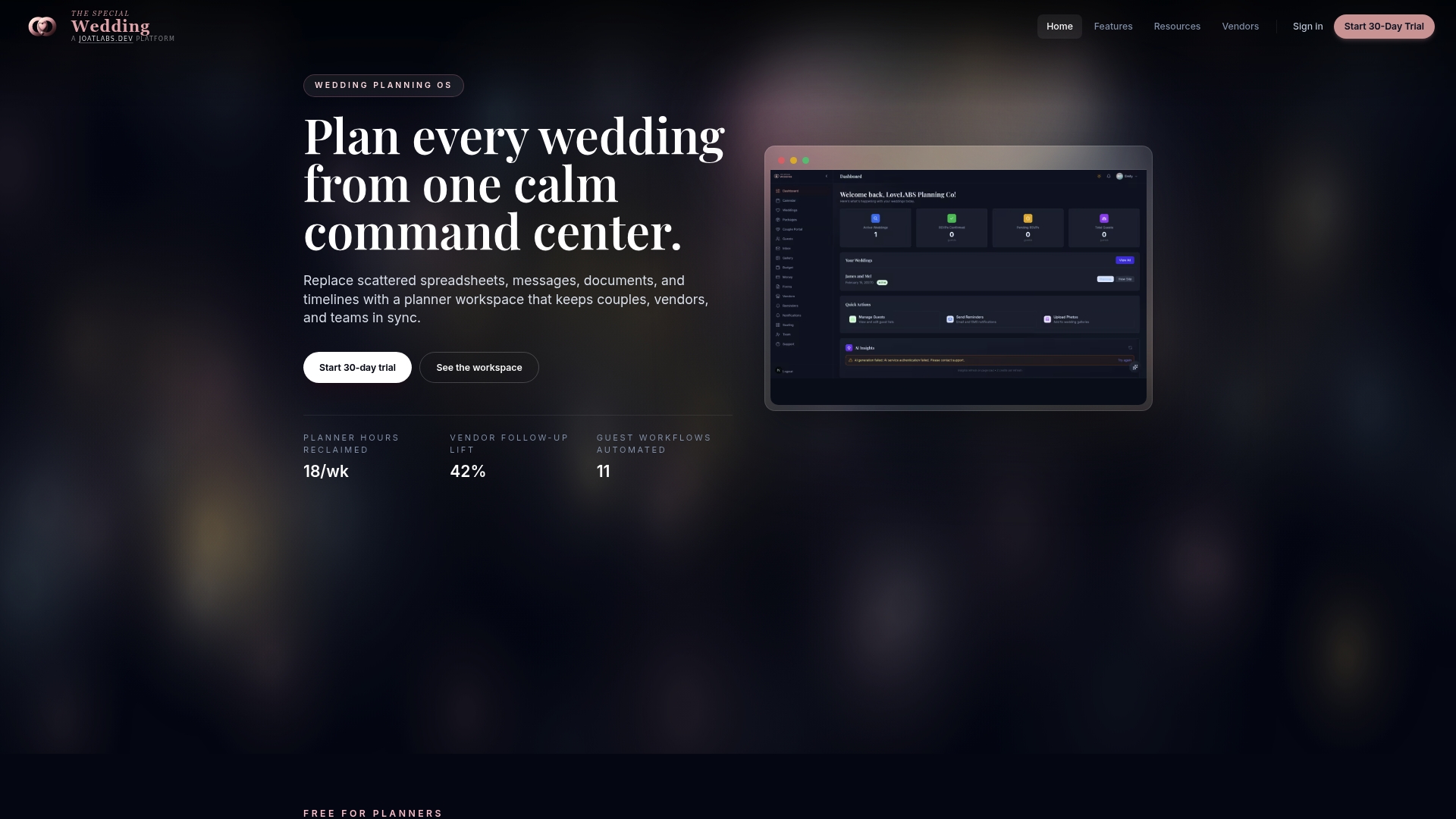
The platform’s client intake forms, vendor onboarding flows, and customizable timeline templates map directly onto the folder taxonomy and automation triggers covered above, contract signature status updates the client record automatically, and role-based permissions keep vendor uploads separate from internal notes. Whether you’re a solo planner running five weddings a year or an agency coordinating thirty concurrent events, the same event workspace scales with you. If your studio still runs its files book like the “before” picture in this guide, start a trial with Thespecialwedding and migrate your next pilot wedding into a single workspace before your busiest season hits.
Frequently Asked Questions
What is wedding file management for a planning studio? It’s the system of organizing contracts, vendor files, timelines, seating charts, and client approvals for every wedding a studio runs, ideally inside one centralized platform rather than spread across spreadsheets and email.
How many folders should each wedding event have? Most studios need eight core subfolders: contracts, budgets and invoices, vendor files, timelines and runsheets, seating, design and assets, approvals, and communications.
What should be automated first in a wedding file system? Vendor confirmation emails, milestone payment reminders, timeline distribution, and contract-signature triggers return the highest time savings with the least setup complexity.
How long does migrating to a centralized system take? Small studios typically complete migration in two to three weeks; larger agencies with dozens of active events should plan for six to eight weeks, including a parallel run period.
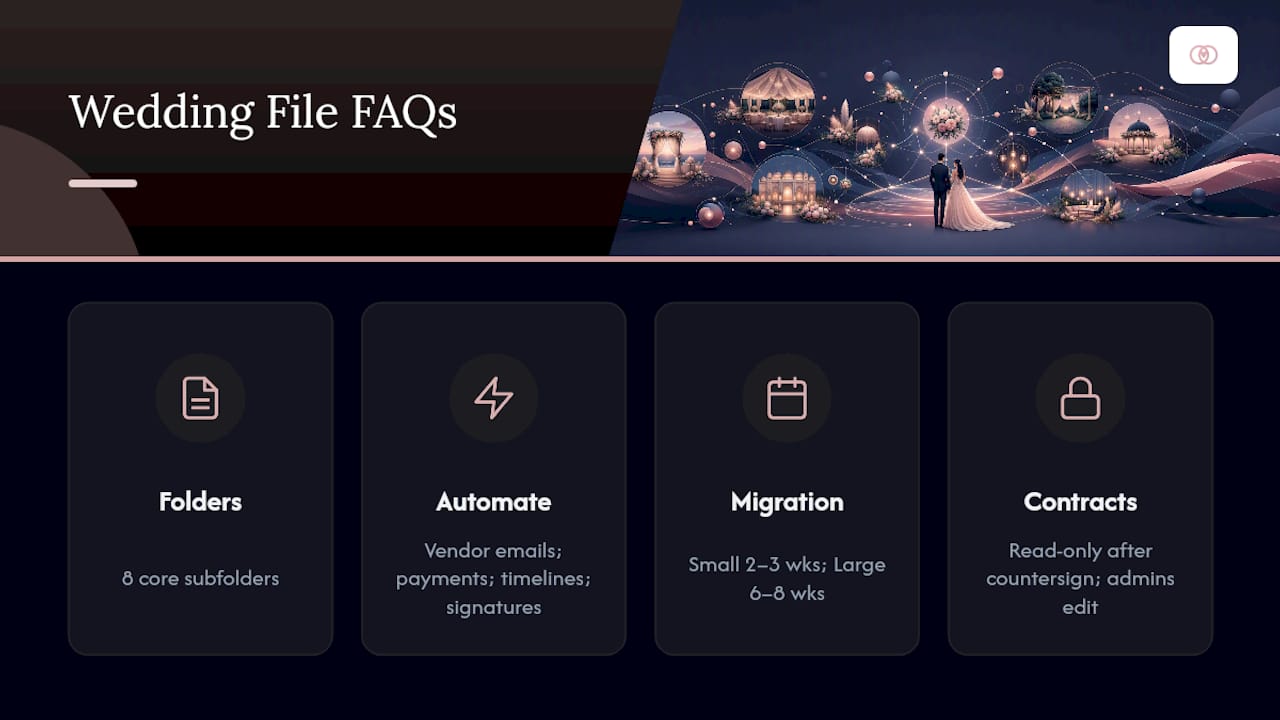
Who should have edit access to signed contracts? Once a contract is countersigned, lock it to read-only for everyone except admins. Planners and coordinators should view it, not edit it, and vendors should never see another vendor’s contract.
Sources
- AI Operating System vs Point Solutions for Wedding Planning | AI Business OS
- Software Buying Checklist for Wedding Planners | Updated as of June 2026
- ERP Software Solutions for Wedding Planners
- Best all-in-one software for wedding planners in 2026 - Plutio
Recommended
- Wedding Planning Templates for Professional Studios | The Special Wedding Blog
- Wedding planner workspace explained: boost multi-event ops | The Special Wedding Blog
- Types of Wedding Event Management Systems in 2026 | The Special Wedding Blog
- WeddingBills.com Alternatives for Planners & Studios 2026 | The Special Wedding Blog
Free wedding planner templates
Skip the blank page — these templates ship with the form fields you actually need.
Browse all 9 free templates →